
 If you have multiple iOS devices such as an iPhone and an iPad, syncing Safari tabs allows you to see websites you visited on one device while using the other device. For example, say you were reading a very interesting article on the iAnswerGuy website while using your iPhone. Unfortunately, you were interrupted before you could finish reading. Later, while using your iPad, you want to continue reading the article. You can quickly find the website by selecting the Safari tab from the iPhone. Safari tabs can even be shared between iOS devices and Mac computers.
When viewing a website with Safari, the website opens in a window called a tab. Through iCloud, these tabs are available to any device running Safari. You just need to enable the sharing of Safari data in the iCloud Settings.
Enable Safari Tab Sharing
To enable Safari data sharing on an iPhone or iPad, open the Settings app and select iCloud.
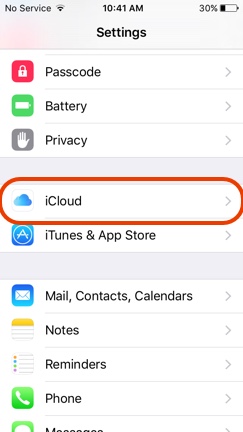
If iCloud is active, you will see your Apple ID listed in the Account field at the top of the window. If iCloud is not active, you will need to sign in using your Apple ID to sync data with iCloud.
Once iCloud is active, toggle the Safari switch to the ON position to activate Safari data sharing. This will allow tabs to be shared across your devices.

Access Safari Tabs on the iPhone
Once Safari data sharing is active on all your devices, you can access tabs from any device by opening Safari and selecting the Tabs icon.
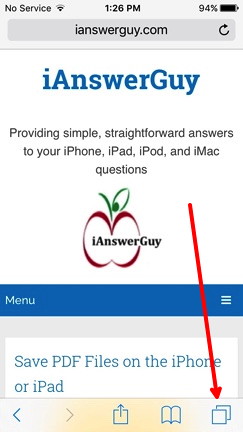
All the open Safari tabs on your iPhone will appear as stacked windows. Tapping on a tab will open it. If you scroll down through all the tabs, there will be a list of open tabs from your other devices. Tapping a tab from the list will open that tab on your device.

Access Safari Tabs on the iPad
Viewing Safari tabs on the iPad is very similar to the iPhone. The open Safari tabs on your iPad will appear as windows. If you scroll down through all the tabs, there will be a list of open tabs from your other devices. Tapping a window or a tab from the list will open that tab on your iPad.